
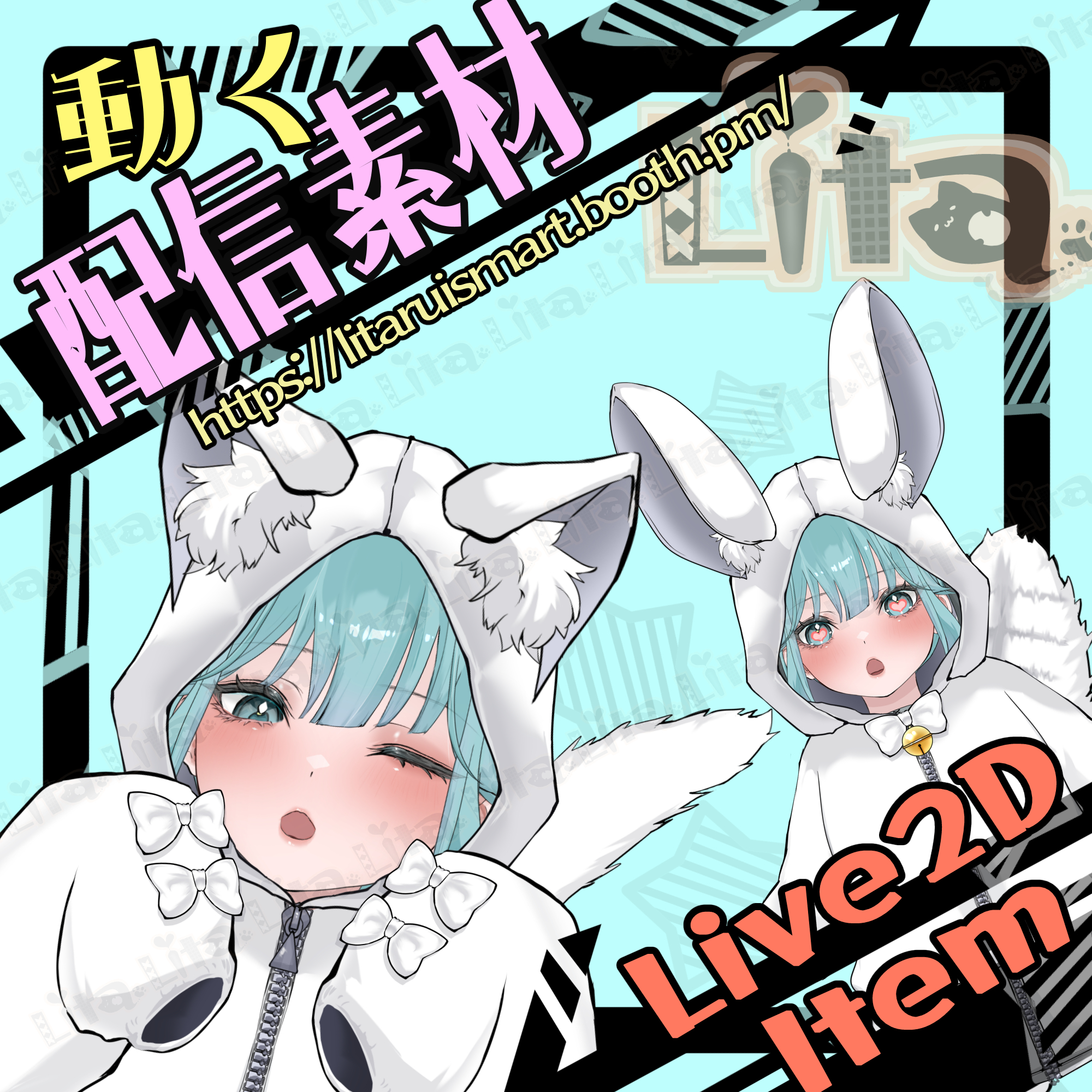
(080)猫耳|うさ耳|パンダ耳パーカー(萌え袖) / Cat | Bunny | Panda Ear Hoodie
Litaの作品を見つけてくれてありがとう!
Thanks for finding my work!
Preview Video
Download / Purchase
English Description
Cat | Bunny | Panda Ear Hoodie is a Live2D hoodie asset with oversized sleeves for VTube Studio.
Customize the Hoodie Design
Add your favorite text or image using texture_01 and texture_02. The editing method is the same as in the tutorial below.
Clipping is not available. The background is transparent, with no background artwork. Color it as you like; the design appears slightly inside the square frame.
Custom Texture Setup Tutorial (English)
Positioning Your Model Inside the Hood
Long-press the item to open its menu, enable the Front/Back tab, and select SelectThisParts (third from the bottom).
Model Placement Tutorial (English)
Appearance & Movement
Switch ears, tails, ribbons, and a bell; customize colors, unzip the hoodie, or hide either arm. Arm positions respond to horizontal mouse movement.
No sound effects are included.
Included Files
・0620Hood.zip
・0620HoodIllust.zip
・0620HoodIllustのコピー.zip
・Live2D item files
moc3 / model3.json / textures, etc.
*Can be used with VTube Studio / nizima LIVE.
Keybind Settings
Hoodie & Display
Ctrl + 1: Custom 1 (texture_01)
Ctrl + 2: Custom 2 (texture_02)
Ctrl + 3: I love Ramen
Ctrl + 4: Unzip hoodie
Ctrl + 5: Green screen ON
Ctrl + 6: Right arm OFF
Ctrl + 7: Left arm OFF
Ctrl + 8: Ear fluff OFF
Colors & Accessories
Shift + 1: Custom hoodie color
Shift + 2: Custom tail color
Shift + 3: Ribbon color
Shift + 4: Head ribbon ON
Shift + 5: Arm ribbon ON
Shift + 6: Neck ribbon ON
Shift + 7: Bell ON
Ear Options
Ctrl + A: Dog ears (small)
Ctrl + S: Dog ears (large)
Ctrl + D: Droopy bunny ears
Ctrl + F: Bunny ears
Ctrl + G: Large bunny ears
Shift + A: Ears OFF
Shift + S: Cat ears (small)
Shift + D: Cat ears (large)
Shift + F: Fox ears
Shift + G: Panda ears
Tail Options
Ctrl + H: White tail
Ctrl + J: Striped tail
Ctrl + K: Tiger-striped tail
Shift + H: White tail (small)
Shift + J: Striped tail (small)
Shift + K: Tiger-striped tail (small)
Reset
Ctrl + 0: Reset expressions
日本語説明
VTube Studioで使える「猫耳|うさ耳|パンダ耳パーカー(萌え袖)」のLive2D素材です。
パーカーの柄をカスタマイズ
texture_01とtexture_02に、お好きな文字や写真を貼り付けられます。編集方法は下記の動画をご確認ください。
今回はクリッピングできません。背景は透明で、背景画像はありません。お好きに色を塗ってください。四角い枠線の少し内側からデザインが反映されます。
カスタムテクスチャ設定方法(日本語)
フードの中央にモデルを配置する方法
アイテムを長押ししてメニューを開き、前面/後面のタブをONにしてください。アイテムパーツは下から3番目のSelectThisPartsを選択してください。
モデル配置の設定方法(日本語)
見た目と腕の動き
耳・尻尾・リボン・鈴の切り替え、色変更、ジッパーを下げる操作、左右の腕の非表示に対応しています。腕の位置はマウスの横移動に連動します。
効果音は付属しません。
内容物
・0620Hood.zip
・0620HoodIllust.zip
・0620HoodIllustのコピー.zip
・Live2Dアイテム一式
moc3 / model3.json / texture など
※VTube Studio / nizima LIVEで使用できます。
キーバインド設定
パーカー・表示
Ctrl+1:カスタム1(texture_01)
Ctrl+2:カスタム2(texture_02)
Ctrl+3:I love ラーメン
Ctrl+4:ジッパーを下げる
Ctrl+5:グリーンバックON
Ctrl+6:右腕OFF
Ctrl+7:左腕OFF
Ctrl+8:耳もふOFF
色・アクセサリー
Shift+1:カスタム服カラー
Shift+2:カスタム尻尾カラー
Shift+3:リボンカラー
Shift+4:頭リボンON
Shift+5:腕リボンON
Shift+6:首リボンON
Shift+7:鈴ON
耳の切り替え
Ctrl+A:犬耳小
Ctrl+S:犬耳大
Ctrl+D:たれうさ耳
Ctrl+F:うさ耳
Ctrl+G:うさ耳大
Shift+A:耳OFF
Shift+S:猫耳小
Shift+D:猫耳大
Shift+F:狐耳
Shift+G:パンダ耳
尻尾の切り替え
Ctrl+H:尻尾白
Ctrl+J:尻尾しま柄
Ctrl+K:尻尾虎柄
Shift+H:尻尾白・小
Shift+J:尻尾しま柄・小
Shift+K:尻尾虎柄・小
リセット
Ctrl+0:表情クリア

Important Note
✅ Commercial use and editing are permitted.
✅ Credit is optional.
✅ Copyright is not waived.
✅ By using this product, you are deemed to have agreed to the Terms of Sale.
🔗 https://lita-art.net/terms-and-condition/
⚠️ There are no restrictions on use in adult-oriented / NSFW content.
Please use within the bounds of common sense.
Color Changes & Sound Effects
Some items support color changes and/or sound effects.
To change the color, adjust the “Color” parameter in the expression settings if available. If there is no “Color” parameter, change the color using the ArtMesh color settings.
Setup Guide:
🔗 https://lita-art.net/how-to-set-up/
Contact
Questions and consultations are accepted via DM.
Feel free to contact me ✨
X: https://twitter.com/LitaVtuber
Web: https://lita-art.net/contact-form/
ご利用について
✅ 商用利用・編集OK
✅ クレジット表記は任意
✅ 著作権は放棄していません
✅ ご利用の際は、利用規約に同意したものとみなします
🔗 https://lita-art.net/terms-and-condition/
⚠️ 成人向けコンテンツでの使用制限はありません。
常識の範囲内でご使用ください。
色変更・効果音について
一部のアイテムは、色変更や効果音に対応しています。
変更は、表情設定のパラメータ一覧に「Color」がある場合、その値を調整してください。「Color」がない場合は、アートメッシュの色設定から変更してください。
設定方法はこちら:
🔗 https://lita-art.net/how-to-set-up/
お問い合わせ
質問・ご相談はDMまでお気軽にどうぞ✨
X: https://twitter.com/LitaVtuber
Web: https://lita-art.net/contact-form/