

This is a guide on how to mute audio items in VTube Studio while still using them.
There are several ways to turn off the sound, but here I will introduce two methods:
the easiest way, which mutes all sounds, and a method to mute only the item’s sound.
How to Mute All Sounds
This method mutes all sounds from the model, including any items you currently have loaded.
First, double-click the screen, then click the gear icon that appears on the left.↓
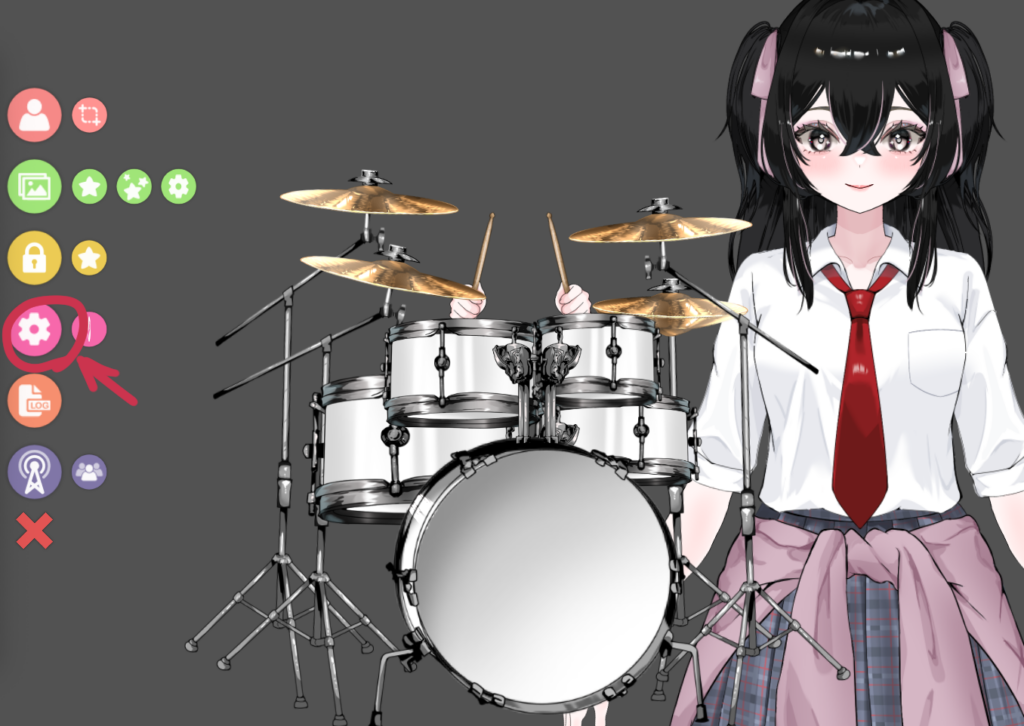
Make sure the gear icon in the top left is selected.↓
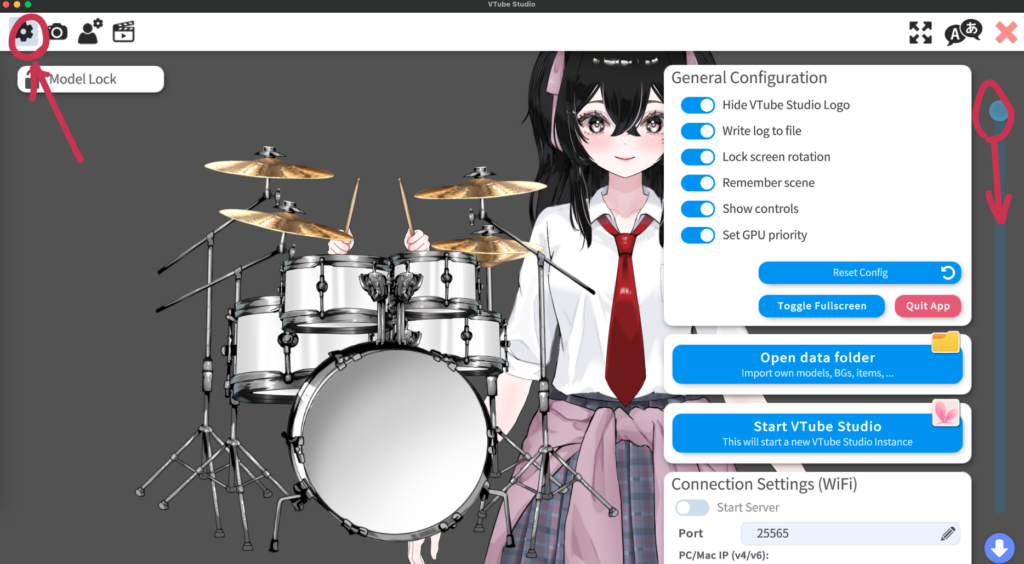
Then scroll down on the right side using the slider.
You can also use the middle mouse wheel to scroll down.
As you go lower, you should see a section called Audio Effects.↓
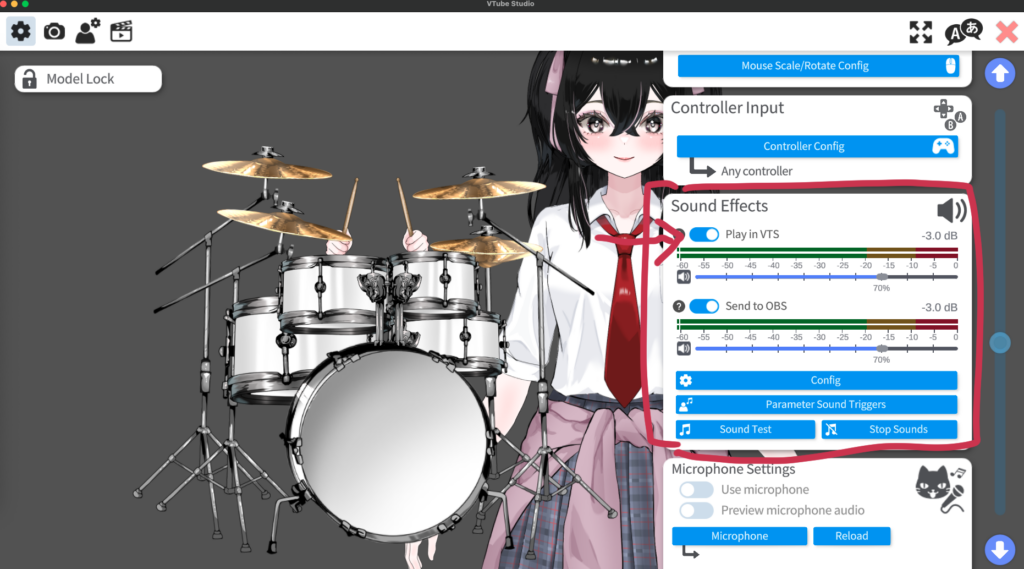
Click the button labeled Play in VTS, and all audio will be turned off.
Here is what it looks like when the audio is turned off:
when it is not blue, it means it is OFF.↓
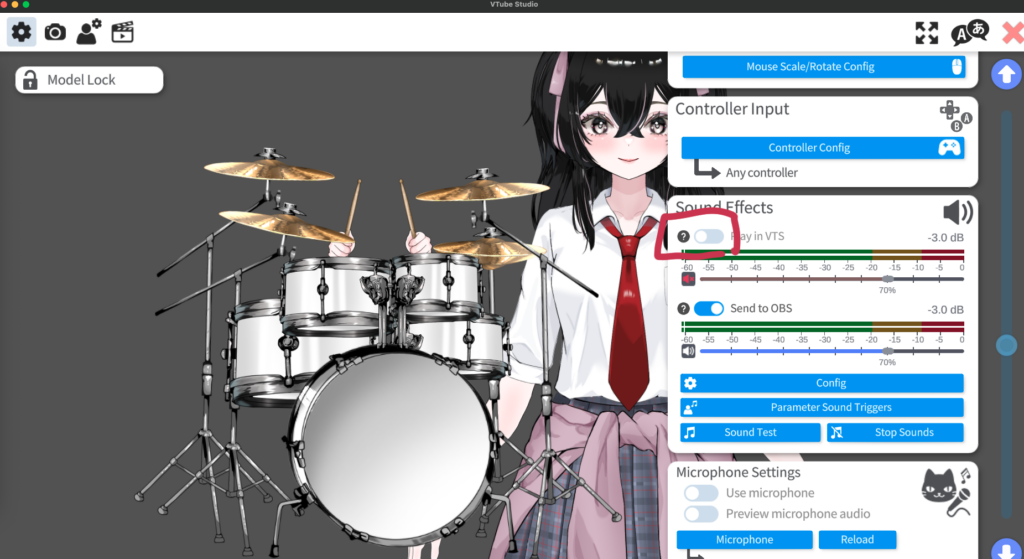
That is all for muting all sounds.
How to Mute Only a Specific Item
Left-click and hold on the item you have loaded for about one second.
As an extra note in case this is unclear:
after left-clicking, do not release your finger right away. Try holding it down a little longer, for about one second.
If the model settings panel is still open on the right side, the item settings panel will not appear.
Please close the model settings panel first, then left-click and hold on the item.
The item will vibrate slightly, and the item settings panel will appear on the right.
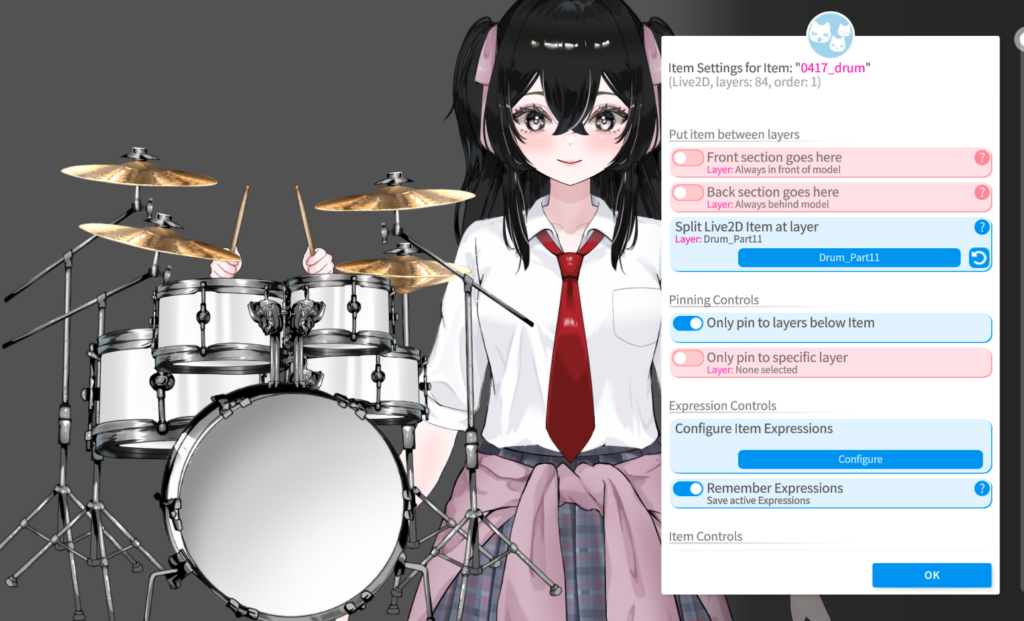
Use the middle mouse wheel to scroll down, and you should see a section like this.
There is a setting called Model Volume.
Please slide this all the way down to 0 (zero).
You can adjust the sound of the audio item here.↓
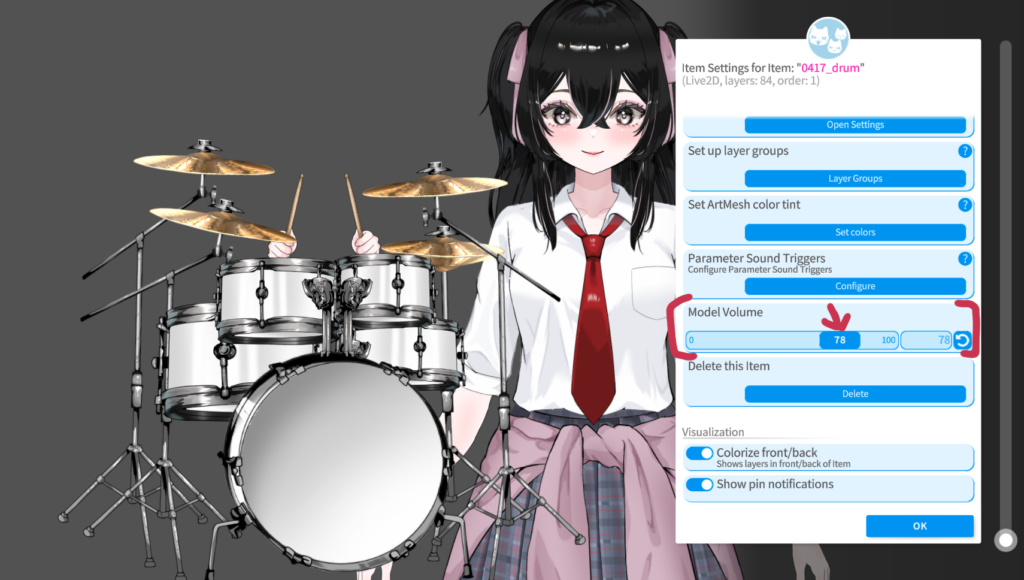
That is all!
It is very simple, so instead of making a separate silent version of the item, I decided it would be better to include these instructions instead.
I hope this helps make your streams even more fun, and that both streamers and viewers can enjoy them with a smile.
For Lita, that would be the greatest reward of all.
コメントを残す